
WordPress is one of the most powerful content management systems (CMS) available today. Powering over 40% of all websites, it’s become the backbone of the modern web for blogs, businesses, and ecommerce alike.
If you’re new to WordPress—welcome. Launching a new site for the first time can feel overwhelming, but once you learn a few core habits and workflows, WordPress becomes easy to manage and scale.
Maybe you’ve been using WordPress for a while but still feel unsure about best practices. Or perhaps you’ve had a few false starts and want to get it right this time with a faster, safer, and more discoverable site.
No matter your experience level, this guide will help you build a better WordPress site—and avoid the common mistakes that trip up both beginners and seasoned users.
These tips were originally written for beginners, but even experienced WordPress users overlook many of them. If you’re ready to set up a high-performing website that’s fast, secure, and search-friendly, you’re in the right place.
1. Choose the Right Web Hosting Plan
WordPress is an open-source CMS that lets you build everything from personal blogs to professional portfolios to full-scale ecommerce stores. WordPress itself doesn’t host your website—that job falls to your hosting provider.
One of the most common early mistakes is assuming WordPress includes hosting. It doesn’t.
WordPress recommends the following hosts for new users:
However, any provider that meets the minimum WordPress requirements will work. As of 2026, your host should support at least the recommended versions below for performance and security:
- PHP 8.3 or higher
- MySQL 8.0+ or MariaDB 10.6+
- HTTPS (SSL/TLS); HTTP/2 or HTTP/3 support is strongly preferred
Once you find the best web hosting provider for your needs, choose the right plan—shared, VPS, cloud, or managed WordPress hosting. Your choice affects speed, uptime, support quality, and scalability. If you expect traffic spikes, prioritize managed WordPress or scalable cloud plans with built-in caching, a CDN, and staging environments.
Picking the wrong hosting plan leads to downtime, slow load times, and emergency migrations. Start with reliable infrastructure, automatic backups, and a clear upgrade path so your site can grow without headaches.
2. Select a High-Quality Theme
WordPress themes control the appearance and layout of your site. You’ll find thousands in the WordPress theme directory.
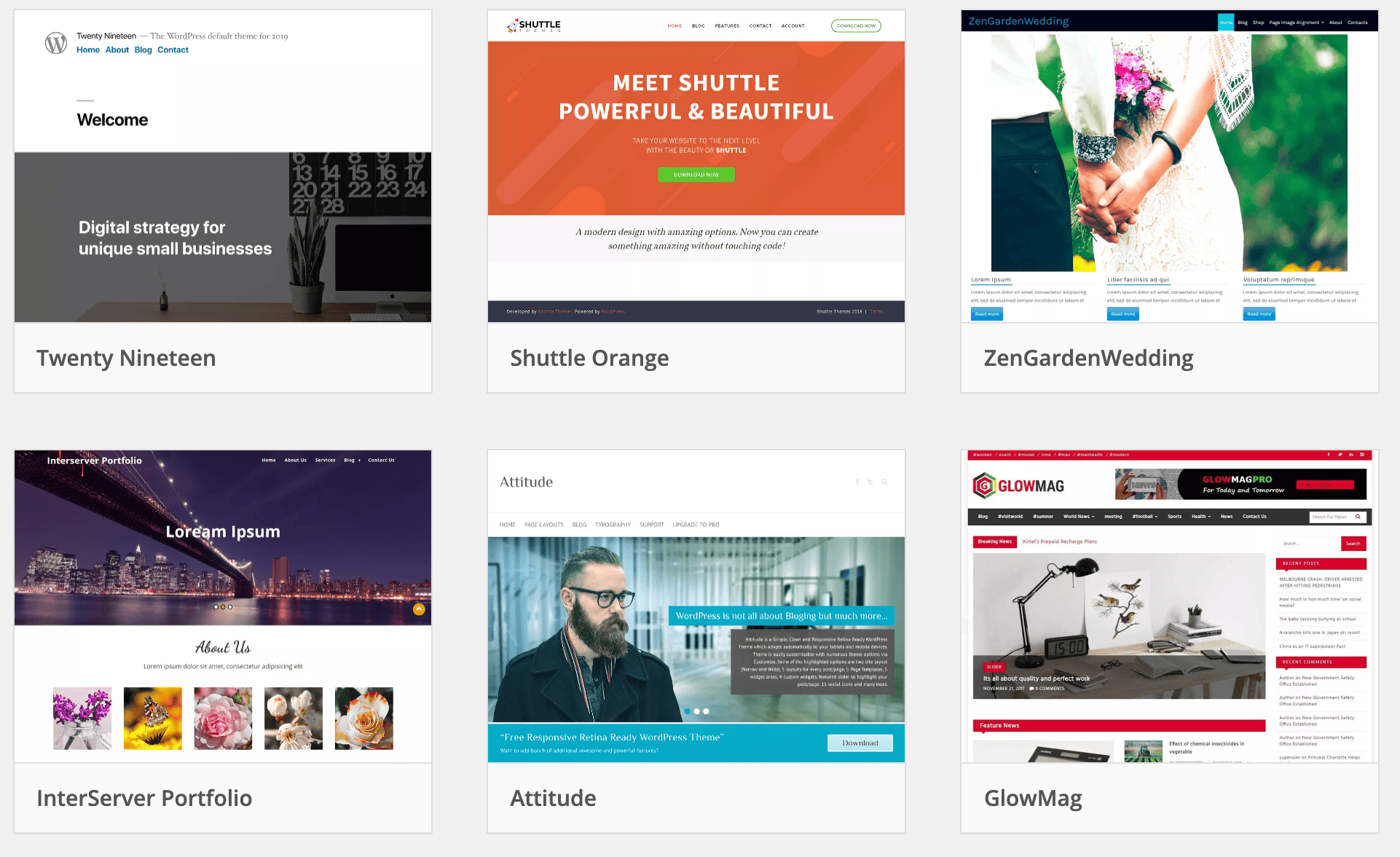
It’s tempting to install the first theme that looks good, but take your time—this is the foundation of your design, usability, and Core Web Vitals (speed, stability, responsiveness).
You can also explore premium themes on marketplaces like ThemeForest. Premium themes often include better support, frequent updates, and starter templates to speed up setup.
Match your theme to your site’s purpose. Blog themes differ from ecommerce or portfolio themes. Always preview the live demo, check documentation and update history, and make sure it’s compatible with the current WordPress version and popular page builders or the Site Editor.
In 2026, mobile responsiveness is non-negotiable. Google primarily crawls with a mobile user agent, so an unresponsive or heavy theme can hurt rankings and engagement. Choose a lightweight, accessibility-friendly theme and avoid excessive bundled plugins or page-builder bloat.
3. Use Google Analytics
You can’t improve what you don’t measure. WordPress doesn’t include built-in analytics, so connect Google Analytics 4 (GA4) to track traffic, engagement, and conversions. Pair it with Google Search Console for queries, indexing, and rich results insights.
The easiest way is with a plugin like MonsterInsights. It surfaces GA4 reports in your dashboard and supports enhanced ecommerce, events, and author/category tracking. You can also use Site Kit by Google to connect Analytics, Search Console, AdSense, and PageSpeed Insights in one place.
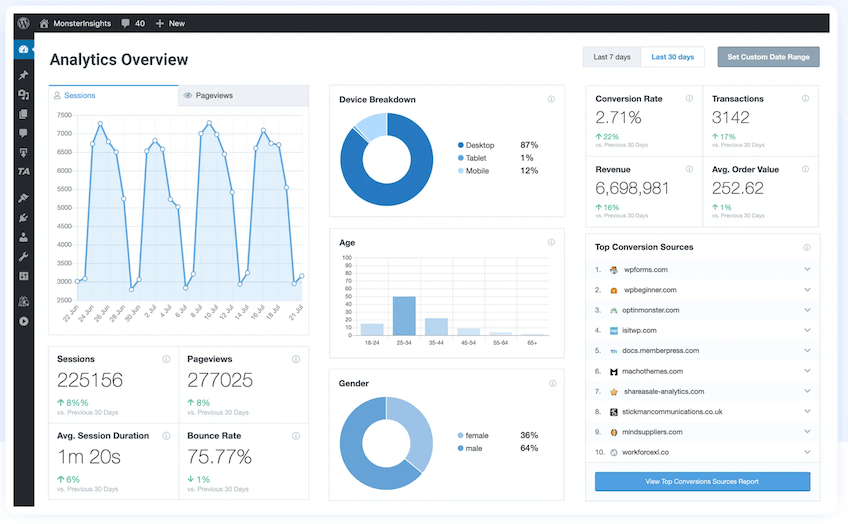
With dashboards available in WordPress, you’ll quickly spot top content, referral sources, high-exit pages, and conversion bottlenecks—then optimize posts, internal links, and CTAs based on what the data shows.
4. Install an SEO Plugin
Organic search is a long-term growth engine, but you won’t get far without solid on-page and technical SEO. WordPress alone won’t handle everything for you.
Install a dedicated SEO plugin like Yoast SEO.
Yoast SEO helps you optimize every page and post: titles and meta descriptions, schema markup, breadcrumbs, internal links, and canonical URLs. It also generates XML sitemaps and lets you manage robots rules, which simplifies technical SEO and indexing.
Whether you’re building a blog, online store, or corporate site, an SEO plugin streamlines best practices so your content can be discovered by the right audience—and so search engines can crawl and understand your site structure.
5. Avoid Plugin Overload
Plugins add powerful functionality, but too many—or poorly coded ones—can slow your site, create conflicts, and introduce security risks.
Essential plugins—analytics, SEO, caching, backups, and security—are a must. Beyond that, be selective and audit regularly. Popular categories include:
- Caching (for speed)
- Form builders
- Backup and restore tools
- Security firewalls
- Membership systems
- Popup builders
- Booking/reservation tools
- Directory listings
If you’re not using a feature, don’t install the plugin—and remove inactive ones. Keep everything updated, avoid plugin overlaps (e.g., multiple caching or SEO plugins), and test changes on a staging site before pushing live.
The goal is performance and stability, not a bloated backend. Fewer, higher-quality plugins with active maintenance beats a long list of abandoned tools.
6. Compress Images
Images make your content engaging, but unoptimized media is a top cause of slow pages. Compress images and serve next-gen formats to keep pages fast without sacrificing quality.
Use images in blog posts, product pages, landing pages—everywhere they add clarity. Then optimize: resize to the display dimensions, set width/height attributes to prevent layout shifts, and use lazy-loading (WordPress adds this automatically for most images).
Never upload raw, oversized files. Compress before publishing. A cloud tool like the Kraken Image Optimizer works well, and many WordPress image plugins can automate compression on upload.
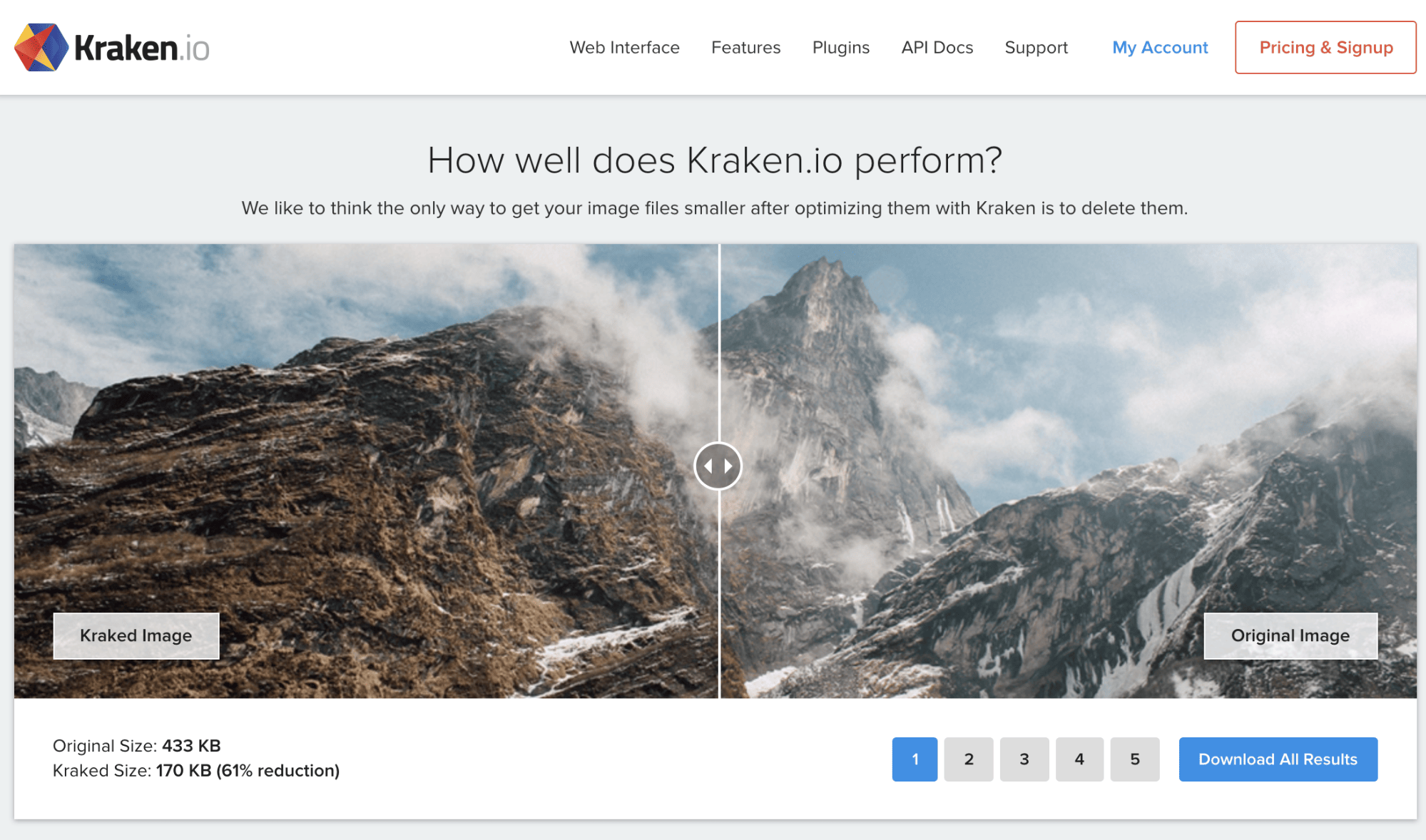
Proper compression and modern formats like WebP or AVIF can cut file sizes by 50–80% with minimal visible loss. Combine this with a CDN to deliver media quickly worldwide.
7. Customize Your Permalinks
Permalinks are the permanent URLs for your pages and posts. They influence both SEO and usability, so set them thoughtfully before publishing.
By default, WordPress can include dates or IDs in URLs—those aren’t ideal. Clean, descriptive, keyword-rich slugs help users and search engines understand a page at a glance.
Go to Settings > Permalinks and choose “Post Name” for clarity. Keep slugs short and descriptive, avoid changing them after publishing, and set 301 redirects if you ever must update a URL.
Readable permalinks make your content easier to share, remember, and manage as your site grows.
8. Prioritize Security
Because WordPress is the world’s most widely used CMS, it’s a major target for automated attacks. Proactive security keeps your site safe and your data intact.
Always update to the latest WordPress version—core updates often include security patches. Keep themes and plugins current, and remove anything you’re not using.
Install an SSL certificate so all traffic—including logins, forms, and payments—is encrypted. Most reputable hosts include SSL at no extra cost and support automatic renewals.
Back up your site on a schedule and store copies off-site. If something breaks—or you get hacked—you can restore quickly. Add a security plugin with a firewall and login protections, enable two-factor authentication for admin users, and use strong, unique passwords with the least-privilege role assignments.
9. Use Heading Tags and Meta Tags Properly
Headings and meta tags improve SEO and readability. They help visitors scan your content and help search engines understand it.
Meta titles and descriptions appear in search results and influence click-through rates. Write compelling, accurate summaries that match search intent—no keyword stuffing.
Within your content, use one H1 for the page title, then H2/H3/H4 to organize sections and sub-sections. Clear, descriptive headings guide readers and highlight key topics.
As you structure posts (like this one using H2 for each major tip), add sub-points with H3s when appropriate, keep paragraphs short, and front-load value so users can quickly find what they came for.
Thoughtful headings and accurate meta tags increase engagement, reduce pogo-sticking, and give your content the best chance to rank for relevant queries.
10. Reduce Clutter for a Cleaner Design
WordPress gives you endless customization options—widgets, banners, popups, ads—but adding too much can backfire.
Cluttered pages distract from your core content and calls to action. Heavy layouts also slow down performance and make mobile usability worse, which hurts engagement and conversions.
Use only elements that serve a clear purpose. Favor clean layouts, readable typography, and generous whitespace. Keep popups respectful, limit ad density, and avoid layout shifts that frustrate users.
In many cases, less is more. A focused, fast interface helps users find what they need—and helps your site meet modern performance and accessibility expectations.
Conclusion
WordPress remains one of the most flexible and beginner-friendly CMS platforms in 2026. Whether you’re building a blog, launching a business, or running an online store, WordPress can do it all—and do it well.
But success isn’t automatic. Stay on top of updates, choose quality tools, write for real users, and keep your site fast and secure. That combination is what separates struggling sites from durable, growing ones.
Start with the 10 tips in this guide—from choosing the right host to sharpening SEO and improving speed—and you’ll set a strong foundation for traffic, trust, and conversions.