
If you’ve ever Googled yourself and found results that are outdated, misleading, defamatory, illegal, or exposing personal information—rest assured, others can see them too.
The good news? You have several straightforward options to remove or suppress that content, especially if it violates the law or Google’s content policies. And if those don’t work, there are still strategic ways to reduce their visibility in search.
6 Steps to Remove Unwanted Google Search Results
I’ll cut to the chase—the most effective way to clean up unwanted search results is to hire a professional reputation management service. They’ll assess your situation, execute the necessary steps, and usually get better, faster results than you could on your own.
Need help fast? Check out Better Reputation, Erase.com, NetReputation, or Reputation Defense Network — top-rated services that handle the entire process for you.
But if you want to try handling it yourself, you’ve got options.
- Start With the Content You Control
- Identify the Content You Can’t Control
- Contact the Webmaster to Remove the Content
- Ask Google to Remove the Search Result
- Check If the Removal Was Successful
- Hire an Online Reputation Management Company
The steps aren’t necessarily hard—but they require patience. In some cases, you could wait weeks or even months only to find out removal wasn’t possible.
I’m not trying to discourage you. I just want you to be prepared. If the DIY route hits a wall, a reputation management service is always an option to fall back on.
When Removing Google Results Is Easy
Sometimes, getting content removed from Google is straightforward. If the page breaks the law, violates Google’s current removal policies for personal information (including doxxing), exposes sensitive personal data, redirects users deceptively, or no longer exists, the process tends to be faster.
You can usually file a request in minutes, but review and processing commonly take days or weeks depending on the case. Don’t expect instant deindexing.
When It Gets Complicated
Other times, removal can be nearly impossible—especially for public records, news coverage, or registry listings. Even content that can be removed often requires legal documentation or repeated outreach to site owners.
You might need to submit a copyright claim, a court order, or proof that the content violates Google’s policies or the Digital Millennium Copyright Act (DMCA).
In most cases, you’ll at least need to contact the site administrator and request deletion or noindexing. But this process often involves long delays and back-and-forth negotiation—with no guarantees of success.
The bottom line? Removing unwanted search results takes effort. Whether it’s a few days or several months, persistence is key.
Step 1 – Start with the Content You Control
The easiest place to start is with the stuff you own. This includes your personal website, blog, social media accounts, YouTube channel, or anything else you directly manage.
Delete Unwanted Web Pages
Begin by removing any outdated or negative content from your website. Here’s how to do it in WordPress:
- Log into your WordPress dashboard.
- Hover over the post or page you want to delete.
- Click Trash.
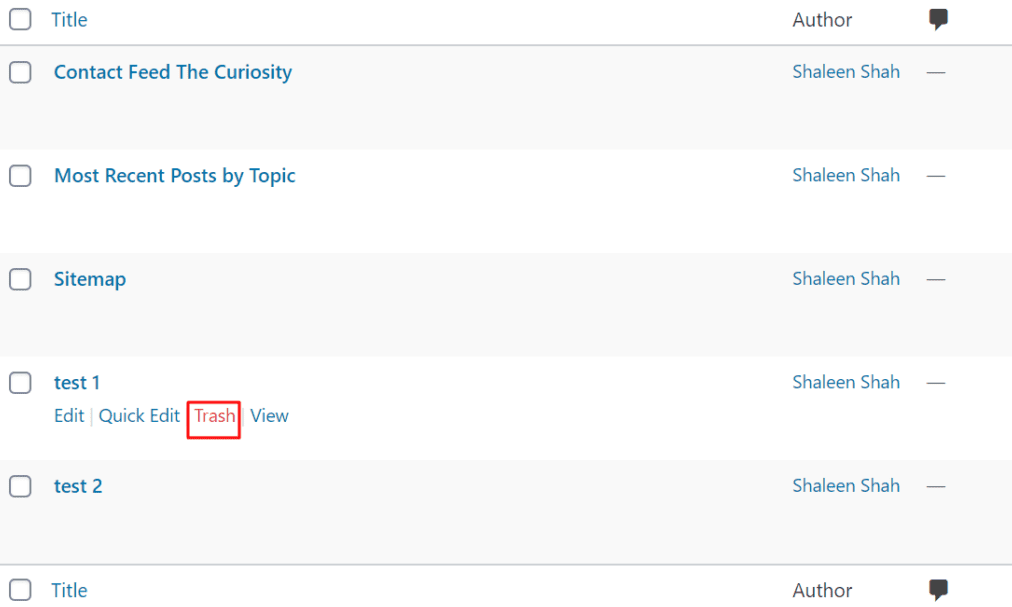
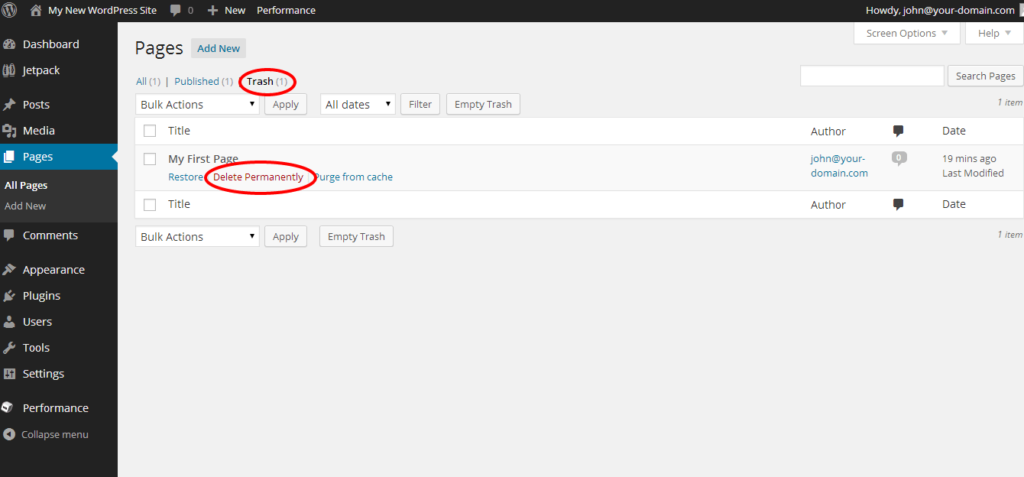
The deleted item will move to your Trash folder. From there, you can restore it if needed or permanently delete it.
Block the URL from Google Search Results
Deleting a page doesn’t mean Google forgets it. The content could still show up in search unless you tell Google to remove it.
The Search Console Removals tool lets site owners temporarily hide a page from Google Search and clear the cached snippet. Temporary removals last about six months; to make it permanent you should delete the page or block indexing.
To use it:
- Open Google Search Console.
- Go to Removals > Temporary Removals.
- Click New Request.
- Select Temporarily remove URL or Clear cached URL and follow the prompts.
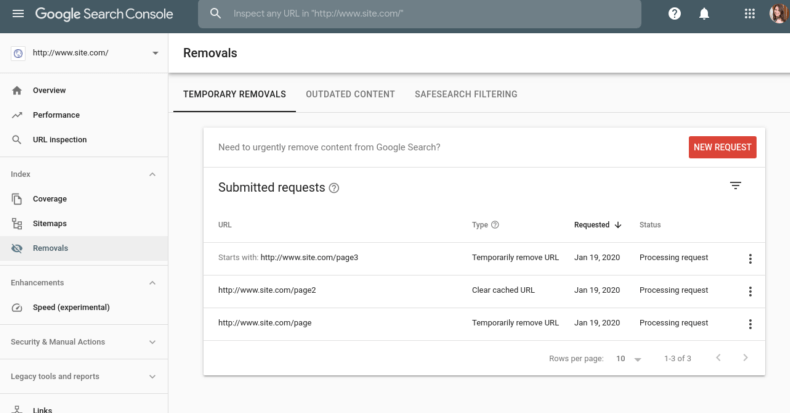
This tool hides the URL from Google’s search results for about six months. For longer suppression, permanently delete the page or block indexing as described below.
Prevent Indexing of Future Content
If you want to keep a page live but hidden from Google, you can add a noindex tag to its HTML head section.
Insert this tag:
<meta name=”robots” content=”noindex”>
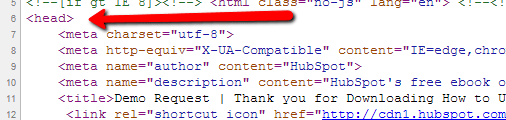
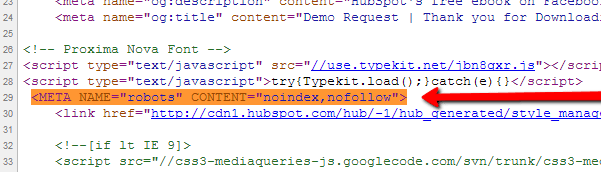
Most WordPress users can skip code and use plugins like Yoast SEO to add the tag in a few clicks.
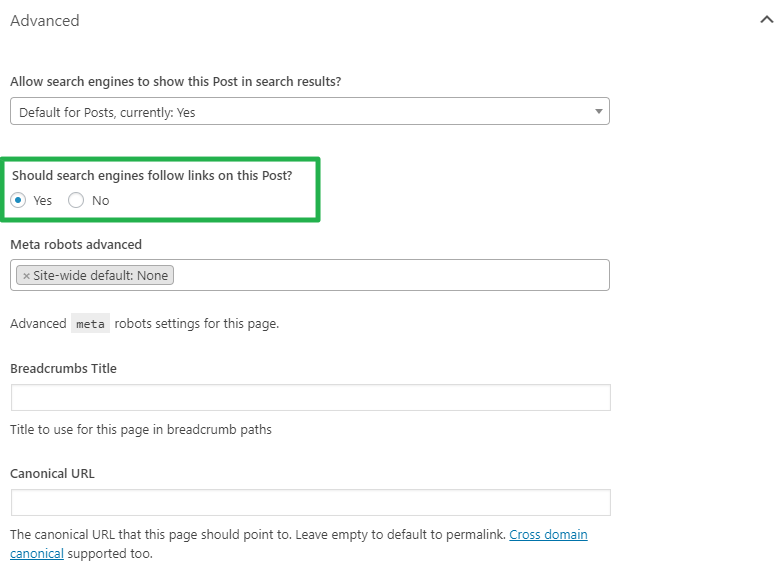
Still, this method isn’t bulletproof—Google may still index the content if it’s linked externally. If privacy is a concern, it’s better to delete the page and block the URL.
Clean Up Social Media
Don’t forget your social accounts. If you shared the content on Facebook, LinkedIn, YouTube, or Twitter/X, those posts may still appear in search.
Either delete or update those posts. YouTube videos especially tend to rank high, so be thorough in cleaning up all mentions.
Step 2 – Identify Content You Can’t Control
Even if you already know which pages are problematic, it’s worth running a comprehensive search. Negative content can appear in places you’re unaware of—especially if others are publishing about you or your business.
This step might feel repetitive, but don’t skip it. You can’t remove what you haven’t identified.
Run a Google Search
Start by Googling your name, business name, common misspellings, and related terms. This is how others are likely to find you, and it’s how you’ll uncover high-ranking problem pages.
Focus on results that show up on the first few pages. If something harmful is buried on page 10, it’s less urgent than something appearing in the top three results.
It’s all about prioritization—start with the biggest threats to your online reputation.
Get Organized
If you’re dealing with just one or two negative results, skip ahead. But if there are several, start a spreadsheet to track your progress.
Why a spreadsheet? Because search rankings change. A URL you see on page one today might drop to page three tomorrow, or disappear entirely—making it harder to verify removals later.
Create a list in Excel or Google Sheets with the URL, platform name, type of content, and a column for notes (like when you contacted the webmaster or submitted a Google removal request).
Check Multiple Sources and Formats
Google indexes content from countless sources. Go beyond blogs and news articles—many damaging items hide in unexpected places:
- Social media posts and comments
- YouTube videos
- Online forums and message boards
- Customer review sites (like Yelp, Google Reviews, Trustpilot)
- Google Images results
- Old business directories or profile pages
Add every problematic link to your spreadsheet to ensure nothing slips through the cracks.
Step 3 – Contact the Webmaster to Remove the Content
Once you’ve identified the content you can’t remove yourself, your next move is to contact the site owner and request deletion or deindexing.
Make a Removal Request
I won’t sugarcoat it—this step takes effort and often doesn’t result in success. But it’s still worth a try.
Look for contact info on the site’s footer, About page, or Contact page. If you can’t find it, use the official ICANN Lookup (free) or a WHOIS service like Whois.com to identify the domain registrant or hosting provider.

When you reach out, keep your tone professional and polite. Threatening or emotional language can backfire, sometimes resulting in retaliation that worsens your situation.
I recommend a phone call if possible—it’s harder to misinterpret tone, and there’s less risk of your written message being published publicly against you.
That said, if you email or message the site owner, avoid saying anything you wouldn’t want screenshotted and made public. Stay calm and clear in your request.
If they agree to remove the content, you should see the change reflected in search results once Google re-crawls the page (often days to weeks).
Some webmasters use WHOIS privacy protection to hide their contact details. If you hit this roadblock, a reputation management company may have better tools for tracking down the site owner.
Request a No-Index Tag Instead
If the webmaster won’t delete the content, ask if they’ll compromise by adding a noindex tag to the page. This keeps it live but prevents Google from showing it in search results.
The tag they need to add looks like this: <meta name=”robots” content=”noindex”>
You can also ask them to remove any identifying info—like your name—from the page title, description, or headers. This can reduce the chances of the content appearing when people search for you.
Step 4 – Ask Google to Remove the Search Result
In certain situations, you can request that Google remove the result directly—even if the content itself remains online. If approved, Google will deindex the link so it won’t appear in search results.
See If Your Case Qualifies
This isn’t a one-size-fits-all option. But if your case involves sensitive or harmful content, it may qualify under Google’s current removal policies. Examples include:
- Explicit or sexually exploitative content
- Personal contact info or other PII that creates identity theft or doxxing risk
- Content tied to legal threats or harassment
- Copyright violations (DMCA)
- European “right to be forgotten” requests
Google also offers “Results about you,” a dashboard that helps you find and request removal of results that expose your contact info, with optional ongoing monitoring and alerts.
It’s a good idea to consult a lawyer or professional reputation firm to evaluate whether your case meets Google’s criteria. Legal professionals can often identify rights violations you might miss.
Submit a Request to Google
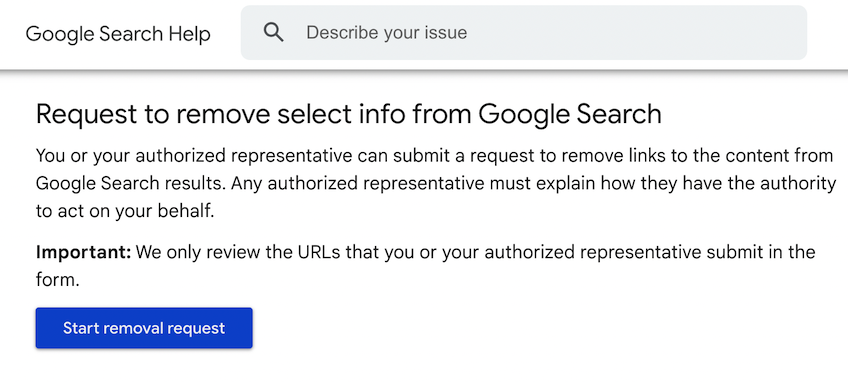
Visit Google’s official content removal page. Browse the options and select the one that best matches your situation. Then click Start removal request and follow the instructions for your case. For EU/UK privacy law cases, use Google’s “Right to be Forgotten” process.
Keep in mind: This process won’t help with negative news coverage or opinion pieces. But it’s very effective for removing personal data like:
- Social Security numbers
- Bank account or credit card numbers
- Images of government-issued IDs
- Medical records or private health data
- Handwritten signatures
- Confidential login credentials
If the page contains doxxing—like your personal phone number or address—alongside threats or harassment, Google may also remove it under their harmful content policy.
Once you submit a request, you’ll get an email confirming receipt. If more information is needed, Google will follow up with additional instructions.
Once a decision is made, you’ll be notified of one of three outcomes:
- The URLs will be fully removed from search results
- The URLs will be removed only for searches containing personal identifiers (like your name)
- The request was denied (with a brief explanation)
If denied, you can consider consulting a legal expert or submitting a revised request with more documentation.
Step 5 – Check If the Removal Was Successful
Now it’s time to confirm whether the link is gone from Google. This part’s easy, but requires some patience.
Search for the Exact URL
Paste the full URL into Google’s search bar to see if it still appears. It may take days to a few weeks for Google to update its index after approval. You can also try a site:example.com "your name" search and check the cached result.
If the page has been updated or removed but Google still shows the old snippet, use the Remove Outdated Content tool to request a refresh of a result you don’t own.
Give It Time
Even if the removal request was approved, search suppression takes time. Google must re-crawl and re-index the affected pages before changes appear. Meanwhile, continue publishing positive, helpful, SEO-optimized content to push down unwanted results.
Step 6 – Hire an Online Reputation Management Company
If all else fails—or you simply don’t want to handle this yourself—a professional reputation management agency can take over.
Better Reputation, Erase.com, NetReputation, and Reputation Defense Network are three of the most reliable options I’ve found. They specialize in removals, suppression, and long-term reputation repair.
Or, check out my full comparison of the best reputation management companies for 2026 to explore more choices tailored to your budget and goals.