
You no longer want your WordPress site. Maybe you hate your theme, maybe everything’s broken, or maybe you’re sunsetting the project. Regardless, you want it gone—posts, comments, pages, media, the works.
But there’s more to deleting a WordPress site than clicking a button. Depending on how you host and manage DNS, a few pieces may also sit outside your direct control. To fully remove a WordPress site, you’ll disconnect the domain, delete your files, erase your database, and take steps to reduce (and eventually eliminate) your site’s appearance in search results and archives.
Before You Delete Your WordPress Site…
There are many ways to host a WordPress site. You might run WordPress on shared hosting with cPanel, on a managed host like Hostinger, on a VPS, or on your own server stack. The exact clicks differ by provider, but the overall sequence to permanently delete a site is the same.
Below, you’ll find the broad, host-agnostic steps to safely remove your site. Follow these in order, consulting your host’s docs where the UI looks different.
(There’s one notable exception: WordPress.com sites are deleted inside the WordPress.com dashboard. I cover that flow below.)
1. Back Up Your Site (Even If You’re Sure)
Before you pull the plug, make a full backup—files and database. It takes minutes and protects you from accidental data loss or a change of heart. Most hosts offer one-click backups or snapshots. You can also export your database via phpMyAdmin and download wp-content (themes, plugins, uploads) via File Manager or SFTP.
With a backup stored off your server (e.g., on your computer or cloud storage), you can confidently proceed—and still restore later if needed.
2. Disconnect Your Domain
The fastest way to take a site offline is to disconnect its domain from the server.
Your domain name is an address that tells browsers where to find your server. When you detach that mapping, the address no longer resolves to your site. Visitors won’t reach your WordPress files—even before you delete them.
Why disconnect the domain first?
- If you delete your WordPress files and database while the domain still points at the server, people (and bots) can still hit your server. That’s confusing for users and can expose unrelated files on the same account.
- If the domain stays live, search engines can keep crawling it. Disconnecting early slows recrawling and reduces new indexing while you clean up.
The good news: disconnecting doesn’t mean losing your domain. You can keep the name for future projects or transfers.
Find Your Domain Settings
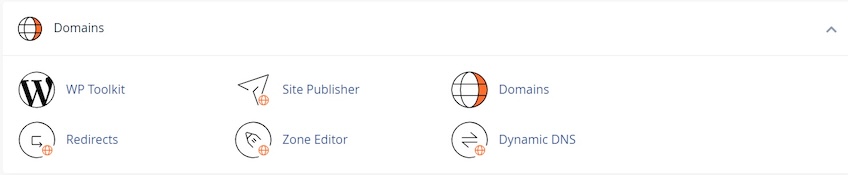
Start by locating where your domain’s DNS is managed. If your hosting uses cPanel, look for a Domains or Zone Editor area like this:
Other hosts present a dedicated Domain Management page:
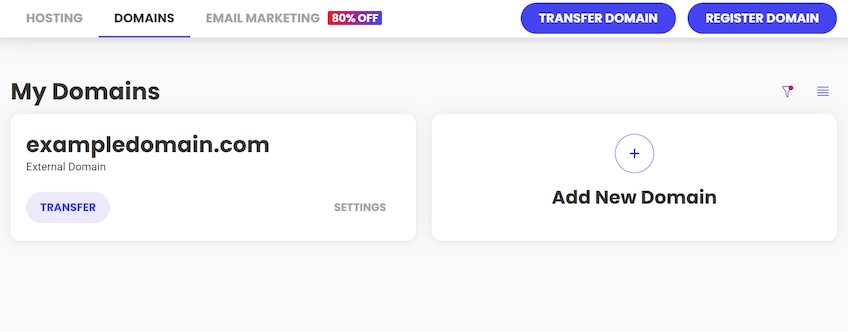
Note: Many people buy the domain at the same place they host, but you might have registered the domain elsewhere (e.g., a registrar) while hosting with a different provider. If so, manage DNS at your registrar, not your host.
Disassociate Your Domain
When someone types “QuickSprout.com,” their browser makes a DNS lookup to translate that name into a server location (nameservers or DNS records such as A/CNAME).
To stop that translation, change your domain’s DNS so it no longer points to your WordPress server. Common approaches:
- Remove custom nameservers so the domain no longer delegates to your host’s DNS.
- Or if DNS is managed at your host/registrar, remove the A and CNAME records that point to your site.
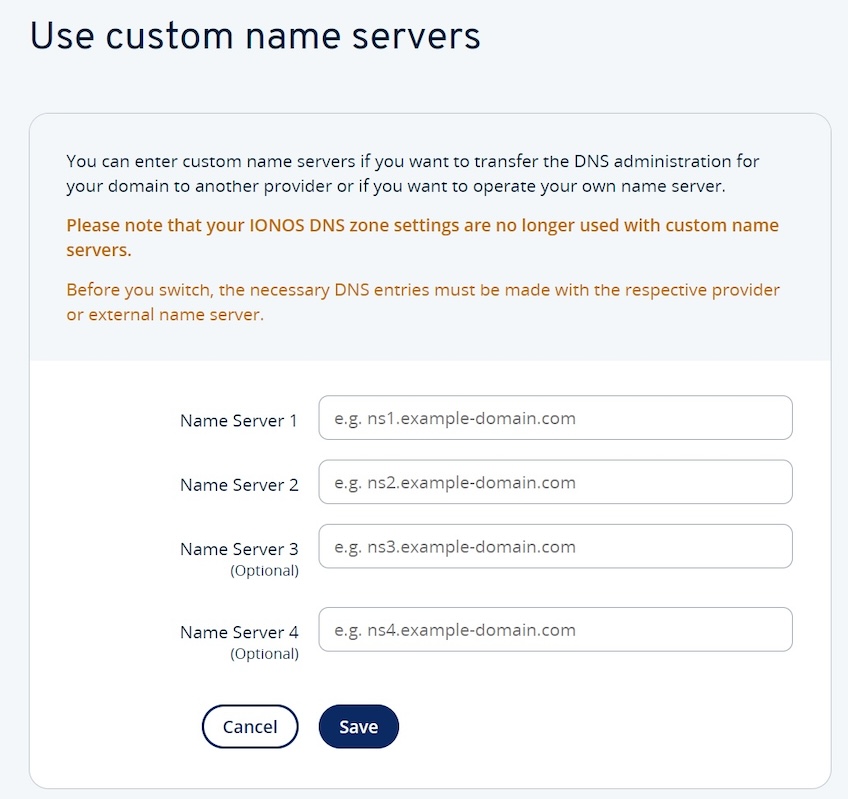
Either method breaks the connection instantly on the DNS side. Some hosts also offer a one-click Reset/Disassociate Domain action that accomplishes the same result.
Propagation: DNS changes often take effect quickly, but full visibility can take 24–48 hours and in some cases up to 72 hours worldwide. If your old site still appears for a bit, that’s normal. When you’re ready to reuse the domain, point DNS to your new site.
3. Delete Your WordPress Files
Disconnecting the domain makes the site hard to reach, but your data still lives on the server. To actually remove it, delete the WordPress files.
Most hosts provide cPanel for administration or a native file manager. You can also use SFTP/SSH. Open File Manager to view and modify files:
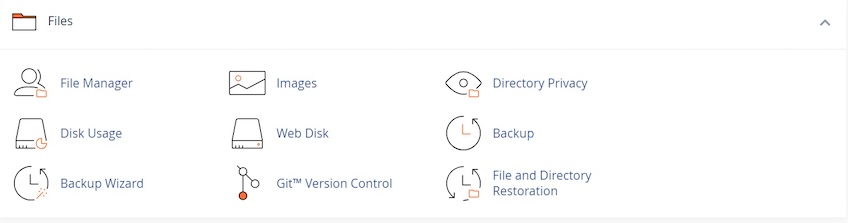
File Manager shows the files on your hosting account.
Look for the public_html (or www) directory. Inside you’ll typically see wp-admin, wp-content, and wp-includes, plus files like wp-config.php, .htaccess, and index.php. These make up your WordPress installation.

Delete every file and folder that powers the site. If WordPress lives in a subfolder (e.g., public_html/blog), delete that folder rather than your entire account. If you host multiple sites on one account, double-check paths so you don’t remove the wrong project.
4. Delete Your WordPress Database
There’s one more crucial piece: the database. Your files control the theme and code; your database stores posts, pages, users, comments, and settings. To complete the deletion, remove the database tied to the site.
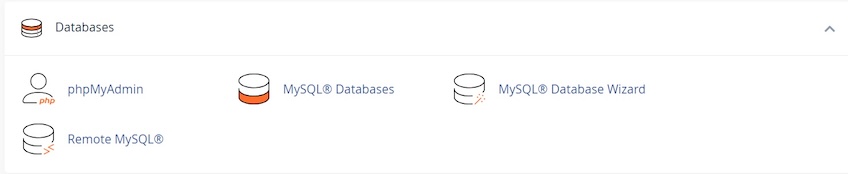
In your hosting dashboard, open Databases (often labeled MySQL). In cPanel, it looks like this:
Some hosts provide a simplified database view:
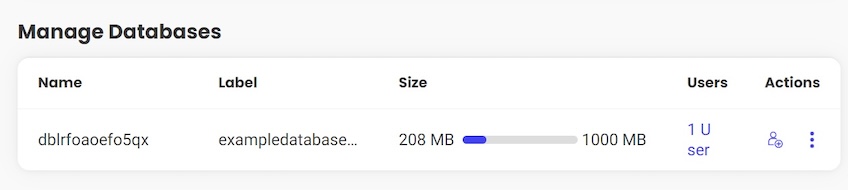
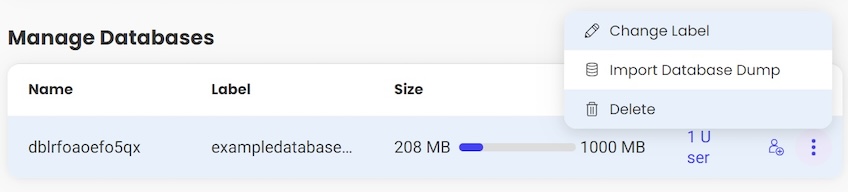
If your account has multiple databases, confirm you’re deleting the correct one. The name might be random for security, but when you browse it you’ll see tables like wp_posts, wp_users, wp_comments, and wp_terms. That’s your WordPress data.
Delete the database (and remove any associated database user accounts you no longer need). This permanently erases your content and settings.
Delete Online Traces of Your Website
At this point your domain is disconnected, files are gone, and your database is deleted.
Will your site instantly disappear everywhere? Not quite. The web is distributed and cached. To minimize leftover traces, take these extra cleanup steps.
Remove Your WordPress Site from Search Results
Search engines will eventually drop your pages once they detect 404/410 responses and see the site is gone, but you can speed things up.
In Google, you can request temporary removal:
- Log into Google Search Console.
- Click Removals -> New Request.
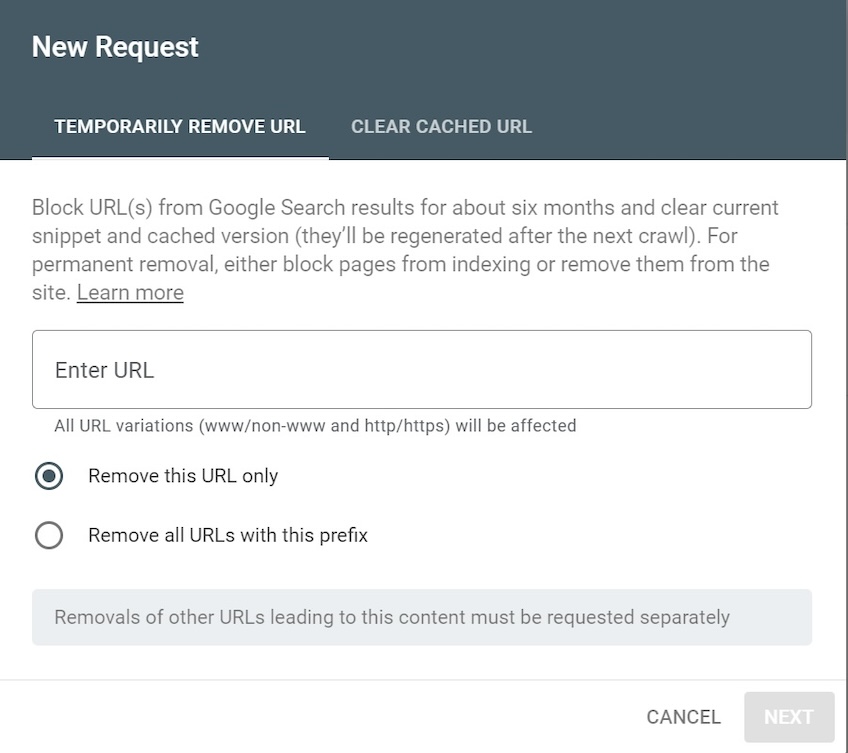
- Enter your site’s URL (or a URL prefix to hide all matching URLs).
- Click Next -> Submit.
This tool hides results temporarily (about six months). For lasting removal, ensure the old URLs return 404 Not Found or 410 Gone and that they’re not linked from an active sitemap. Over time, Google will permanently drop them.
You can also remove URLs in other search engines via their webmaster tools. The principle is the same: serve 404/410 and request removal.
Stop Crawling and Caching
If your server still answers at the old host, set your web server or .htaccess to return 410 for the old paths, or simply leave no site files so requests return 404. Avoid leaving a “parked” page that serves 200 OK for the old URLs—that slows deindexing.
If you previously submitted sitemaps, remove or disable them in Search Console. Leaving sitemaps that reference deleted URLs encourages repeated crawling.
Purge Caches and Third-Party Copies
Clear any caching layers that may keep content alive: your CDN cache, host-level page cache, plugin caches, and any image optimization/CDN tools. If you used social sharing cards, previews may linger on social platforms until their caches refresh.
Remember backups, too. If you’re permanently done with the site, delete automated backups and snapshots stored at your host or cloud storage. Keep a single archival copy somewhere safe if you might need proof or records later.
Remove Your Site from the Internet Archive
The Internet Archive preserves historical snapshots of websites. If you need those removed, you can request takedown by contacting archive.org.
Your request should include:
- the URL(s) to remove
- the timeframe(s) to remove
- the period during which you controlled the site
- any relevant context for the request
Be specific and clear about ownership and rationale. Vague requests are likely to be rejected.
Other Ways to Delete a WordPress Site
Fully deleting a site is thorough by design. If you just want a clean slate without shutting everything down, there are alternatives—though they aren’t as complete.
Use a Plugin to Reset Your Site
If your goal is to wipe content but keep WordPress installed, a reset plugin can rebuild your database tables to a fresh state. This is useful when you want to start over while keeping the same domain and WordPress install.
WP Reset is a popular option for resetting posts, pages, comments, and core tables. Another solid utility is Database Reset if you want a lightweight, table-level reset. As always, review the prompts carefully so you don’t erase more (or less) than intended.
Delete a WordPress.com Site
If your site is hosted on WordPress.com, the process is much simpler and handled entirely in your dashboard:
- Go to Settings -> General.
- Scroll to the bottom (Danger Zone).
- Select Delete your site permanently.
A guided wizard will help you export content (if desired) and then remove the site. Follow the on-screen steps to finish deletion. For current details, see WordPress.com’s support page.
Your Next Steps
It’s not always possible to remove every trace of a website immediately, but the steps above will make your old site as undiscoverable as practical and ensure lingering copies fade over time.
Double-check the rest of your footprint: cancel unused hosting plans, disable cron jobs, rotate or revoke any API keys you embedded, and decide whether to keep or let your domain expire.
Ready for a fresh start? Consider rebuilding on a better web hosting service or creating a new WordPress site from scratch. The sky’s the limit.