
Google’s tools make it fast, accurate, and painless to find the IP address of any website.
Use the Google Dig Tool in the Google Admin Toolbox. It’s the same tool I rely on.
With Dig, anyone—even with zero technical background—can find a website’s IPv4 or IPv6 address in seconds.
You don’t need to know DNS inside out or even what “IP” stands for.
All you need to know is that an IP address is a unique identifier that points to a specific website or server on the internet.
Here are two sample IP addresses and the sites they can resolve to:
- 141.193.213.10 (quicksprout.com)
- 2603:1030:b:3::152 (microsoft.com)
Your results may vary by time and location—CDNs and load balancers often return different but correct IPs.
I’ll cover the technical details later. First, I’ll grab the IP you need.
Step 1 – Open Google Dig Tool
Go to the Google Dig Tool page. It runs entirely in your browser.
No installation or sign-in required—once the page loads, you’re ready.
You’ll see a “Name” field and a “Type” selector for DNS record types.
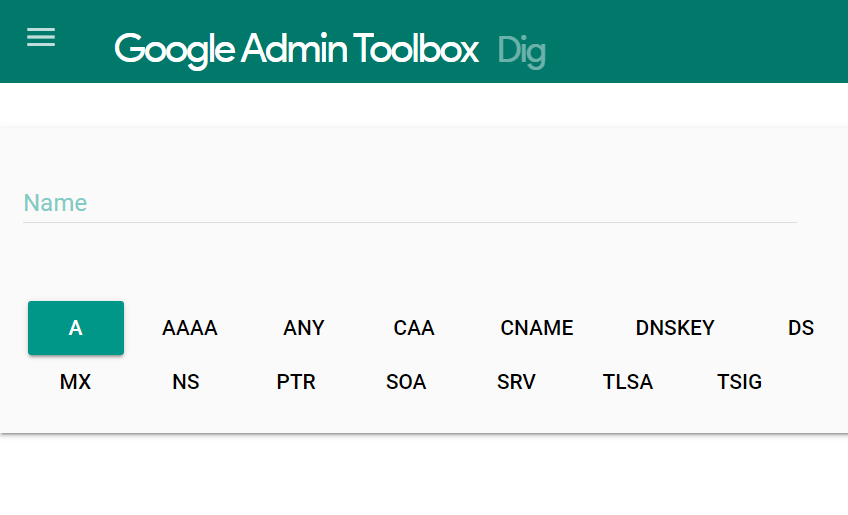
By default, the record type “A” (IPv4) is selected.
That’s perfect for most lookups. If you specifically want IPv6, change the type to “AAAA.”
Ignore advanced options for now—I’ll run a simple lookup first.
Step 2 – Enter the Website Domain Name
In the “Name” field, type the domain you want to check.
For example, the domain for Quick Sprout is “quicksprout.com”. Subdomains work too (e.g., “blog.example.com”).

Just enter “quicksprout.com”—no need for “https://” or “www.”
Press Enter/Return to run the search.
Step 3 – Find the IP Address
Results appear directly below the input.
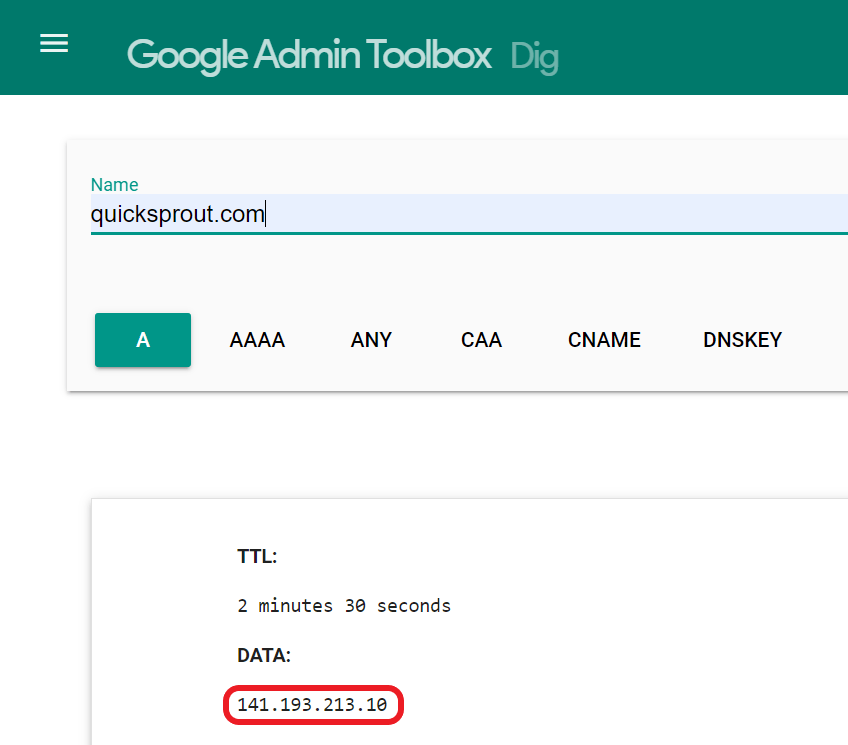
Look for the table column labeled DATA. That’s where the IP address is shown for the record type you selected.
If you see a CNAME (alias) but no IP, change the type to “A” (IPv4) or “AAAA” (IPv6) and run the lookup again.
That’s it—you’ve found the site’s IP using a fast, ad-free Google tool.
Why Is There More than One IP Address for a Website?
Plenty of sites publish multiple IPs. It’s normal—especially for larger properties and sites using performance or security services.
Seeing two, four, or even more addresses isn’t a problem.
They all serve the same website. What you’re seeing is usually load balancing, anycast routing, or both.
For example, when I looked up “quicksprout.com,” I saw two IPv4 addresses:
- 141.193.213.10
- 141.193.213.11
Both route to the same destination.
Why multiple IPs? Common reasons include CDNs (for speed and uptime), DDoS protection, regional routing, IPv4 + IPv6 dual-stacking, and failover.
Bottom line: multiple IP addresses don’t change how visitors reach your site—they just make delivery faster and more resilient.
What Exactly Is an IP Address?
The Internet Protocol (IP) defines how data moves between devices on the internet.
It lets computers, phones, and servers—anywhere in the world—communicate in a common, interoperable language.
An IP address is the unique numeric (or alphanumeric, for IPv6) label that identifies a device or website on that network.
Think of it like a digital street address.
Just like mail needs a house number and ZIP code, internet data packets use IP addresses to reach the correct server or device.
Every web request and email uses IP addresses to make sure information gets to the right place, quickly and reliably.
Billions of packets traverse global networks every day, and IP is what tells them exactly where to go.
Why Are There IP Addresses and Domain Names?
If each website has an IP, why bother with domain names?
Because people remember words better than long numbers.
“quicksprout.com” is easier to recall than “141.193.213.10.”
Domain names are human-friendly labels that point to numeric IPs behind the scenes.
DNS (the Domain Name System) handles the translation automatically—when you type a domain, DNS returns the correct IP.
When you used the Google Dig Tool, you performed a DNS lookup: “What’s the IP for this domain?”
In short: domain names are for humans, IPs are for machines, and DNS connects the two.
Why Do Some IP Addresses Look Different?
There are two active versions of IP: IPv4 and IPv6.
Here’s how they look:
- IPv4: 20.112.250.133
- IPv6: 2603:1030:b:3::152
Both formats are valid and can point to the same website (e.g., microsoft.com).
IPv4 came first and remains common, but the internet needed far more unique addresses than IPv4 can provide.
IPv6 solves that with an enormous address space. Many providers now run “dual-stack,” serving both IPv4 and IPv6.
As a visitor or site owner, you don’t need to choose—most networks handle both. Your lookups may return an A record (IPv4), an AAAA record (IPv6), or both.
The transition is ongoing worldwide, and support varies by ISP and region, but either version will get users to your site.
Why Did an IP Address Change?
It’s normal for a website’s IP to change over time.
IP addresses are allocated by hosting providers and networks. They may reassign or rotate IPs to manage capacity, security, or performance.
This is why many sites use dynamic IPs (they can change). DNS records and caching (TTL) handle updates automatically, so visitors won’t notice.
Some businesses pay for static IPs that rarely change. Static IPs can help with firewalls, allowlists, or certain integrations—but they cost more and require manual management.
CDNs and DDoS protection can also rotate IPs globally using anycast routing. That’s expected and improves reliability.
Other Easy Ways to Find a Website IP Address
In addition to Google’s Dig Tool, here are simple alternatives you can use while troubleshooting, managing DNS, or double-checking results.
Welcome Email From Web Host
If you own the site, the IP is often listed in the original welcome email from your web hosting provider.
Search your inbox for that first message. It usually includes account details, server information, and your site’s IP address.
Ping Command to Find Website IP Address
On Windows, open Command Prompt and “ping” the domain to reveal an IP.
It sounds technical, but it’s easy:
Open the Command Prompt app from the Start menu.
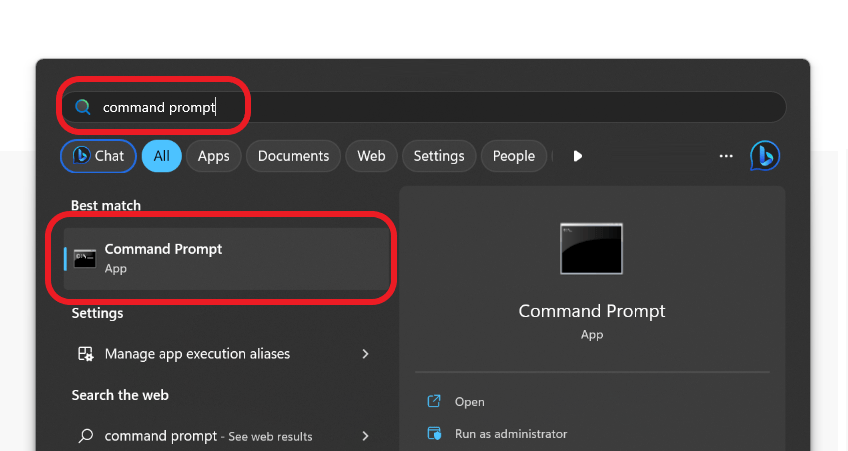
Click the Command Prompt result to open it.
You’ll see a black-and-white command-line window.
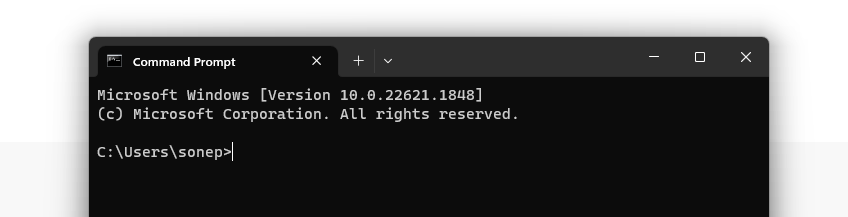
Type ping followed by a space and the domain—for example:
ping quicksprout.com
Press Enter to run it. The response includes the site’s IP.
Here’s what it might look like:
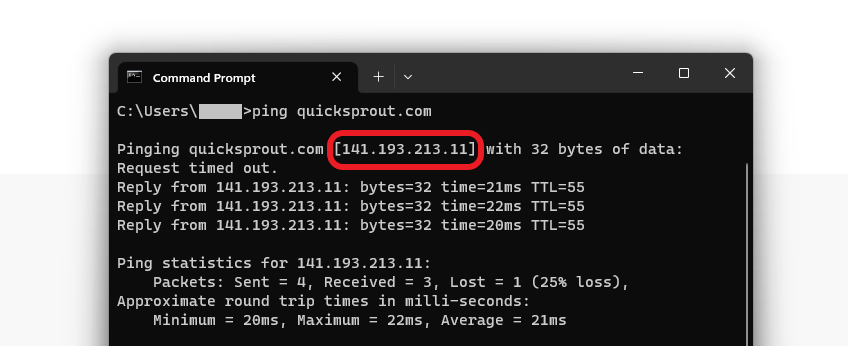
You’ll see the IP near the top of the response.
On a Mac?
Open Terminal and run the same command: ping domainname.com. To limit the output, add a count (e.g., ping -c 4 domainname.com).
Tip: If your system prefers IPv6 and you want IPv4, use ping -4 on Windows or ping -c 4 -4 on macOS. Use -6 to force IPv6.
Nslookup Command to Find Website IP Address
nslookup is another built-in tool for checking IPs and diagnosing DNS.
Open Command Prompt (or Terminal on Mac) and type:
nslookup quicksprout.com
Here’s an example of the output:
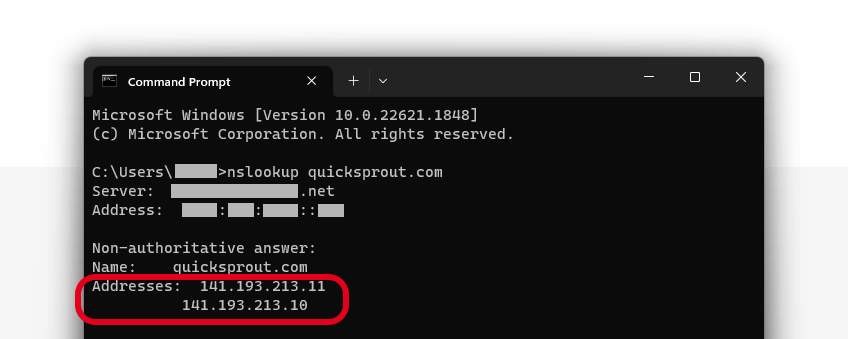
The response lists your current DNS resolver and the IP returned for the domain.
You can specify the record type directly, like nslookup -type=A example.com for IPv4 or nslookup -type=AAAA example.com for IPv6.
Dig or Host in Terminal (macOS/Linux/WSL)
If you have Terminal tools installed, these commands are quick and precise:
dig +short A example.com
dig +short AAAA example.com
host example.com
They return the A/AAAA records directly, which is handy for scripts and quick checks.
Troubleshooting & Helpful Tips
If ping doesn’t show an IP: Some networks block ICMP (what ping uses). Use the Google Dig Tool, nslookup, or dig instead.
If you see only a CNAME: Change the query type to “A” (IPv4) or “AAAA” (IPv6) to get the actual address.
If the IP keeps changing: That’s expected with CDNs and anycast. DNS TTL and regional routing can produce different (but valid) answers over time.
Origin IP vs. CDN IP: Public lookups for proxied sites usually return the CDN’s edge IP, not your server’s origin IP. To find the origin, check your hosting dashboard or records when the proxy is disabled.